
So, you’ve decided on managing cookie preferences through CookieYes CMP and now you’re ready to set it up in Google Tag Manager. Today you’ll learn how to do a CookieYes implementation with Google Tag Manager. If you don’t have a GTM container set up, click here to set one up.
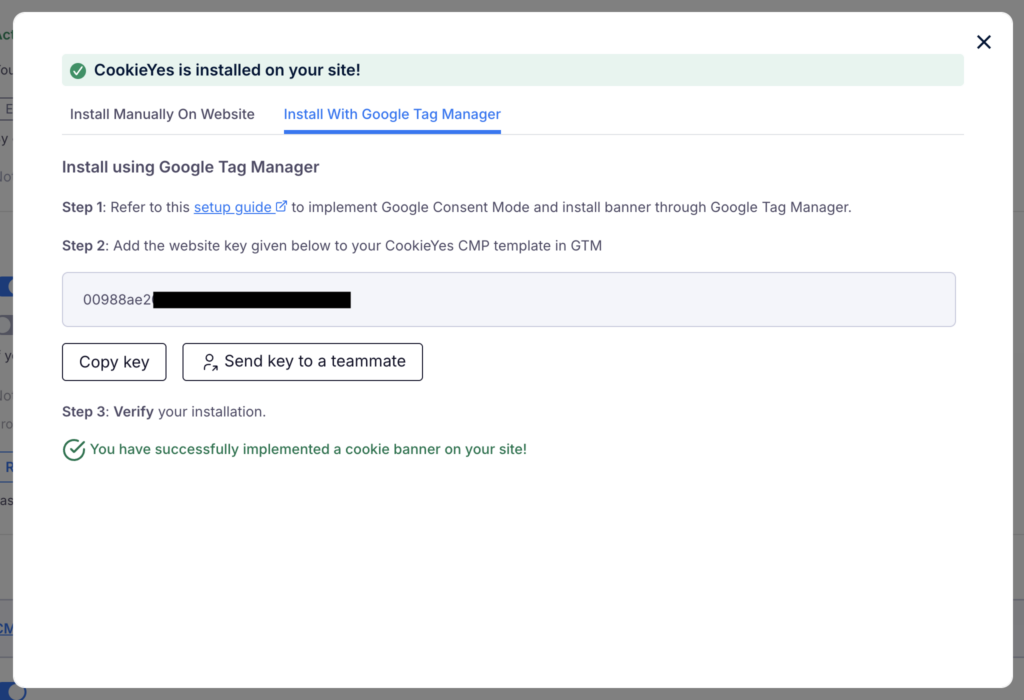
How to get your website key from CookieYes
- First, open your CookieYes.com Web App Dashboard
- Next, navigate to Advanced Settings in the sub-header menu.
- From there, select Get Installation Code.
- After that, choose Install With Google Tag Manager.
- Finally, click the Copy Key button to save your website key for later use.
How to set up your CookieYes website key in Google Tag Manager
- In Google Tag Manager, open your container and navigate to Variables in the left sidebar.
- Then, create a new variable and open the Variable Configuration panel.
- Instead of using a dynamic value, choose the Constant variable type.
- Next, paste the website key you copied from CookieYes into the Value field.
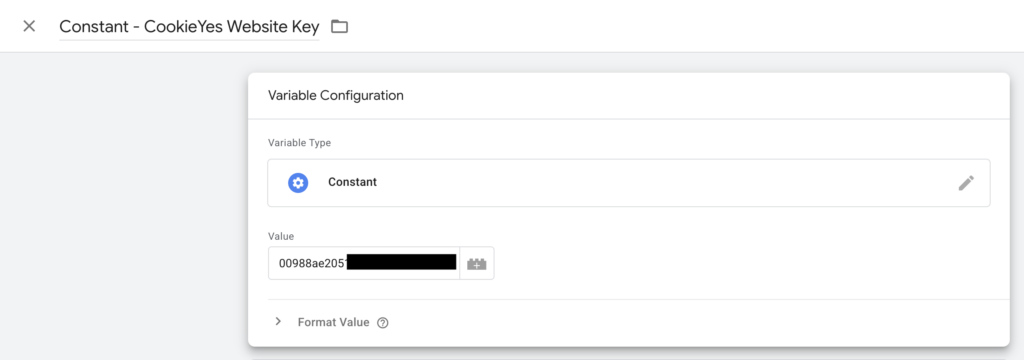
- For consistency, name the variable: ‘Constant – CookieYes Website Key‘
- Finally, save the variable
How to set up the CookieYes CMP Google Tag Manager tag
How to add your website key
- To begin, navigate to Tags in Google Tag Manager and create a new tag.
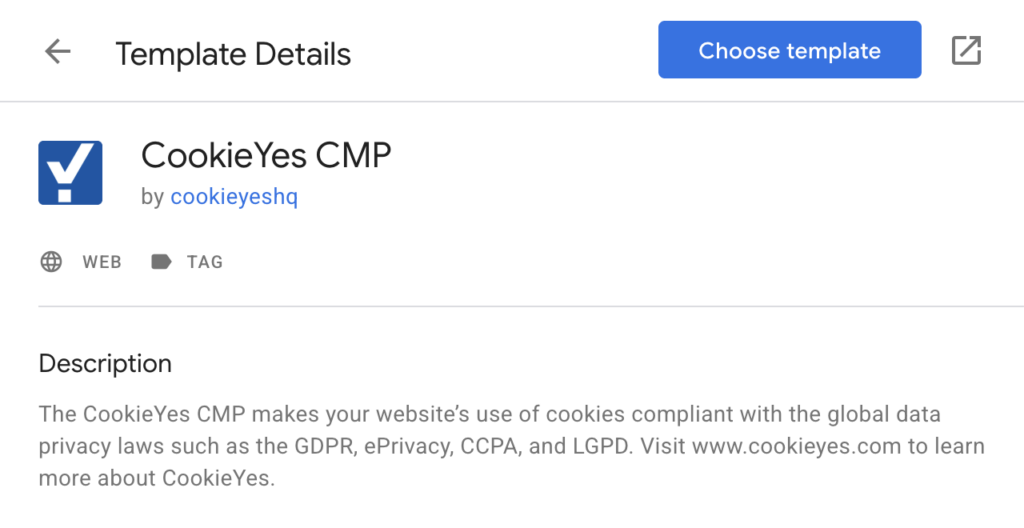
- Inside the Tag Configuration panel, select Discover more tag types in the Community Template Gallery.
- Then, search for CookieYes CMP and choose the template.
- After installing the template, enter two opening brackets (
{{) in the website key field and begin typing your variable name. - When the dropdown appears, select
{{Constant - CookieYes Website Key}}
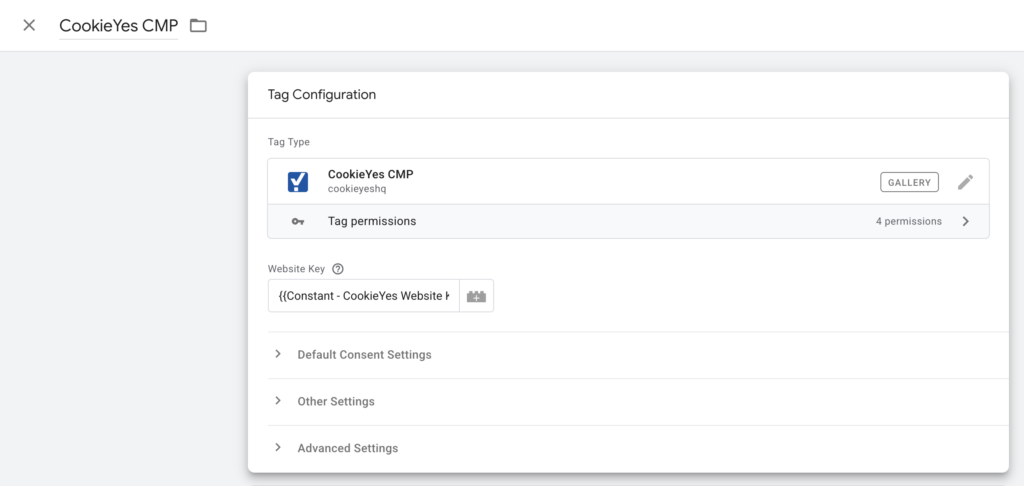
- Lastly, name the tag ‘CookieYes CMP‘ and save it.
How to set up default consent states for CookieYes implementation with Google Tag Manager
Disclaimer
Default consent states and region settings may affect your legal compliance. Therefore, consult your legal or compliance team before changing consent categories or regional behavior.
If your legal team is looking for advice on how to manage consent, contact us here.
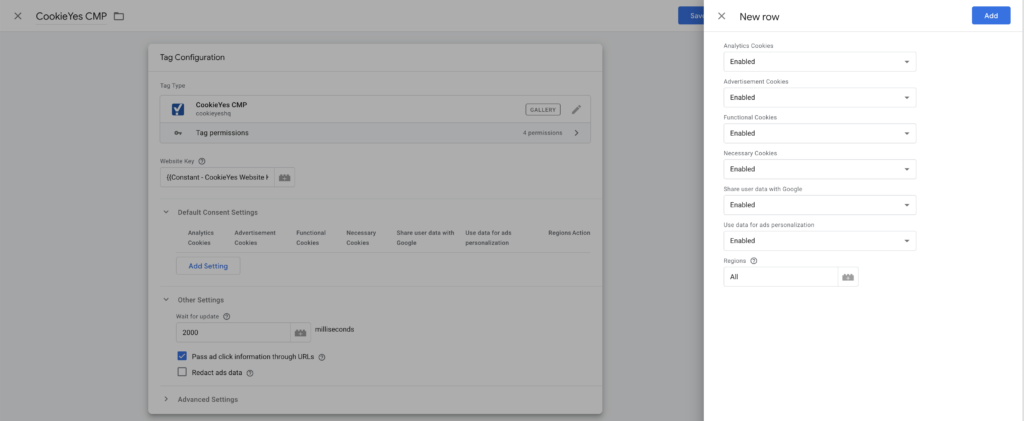
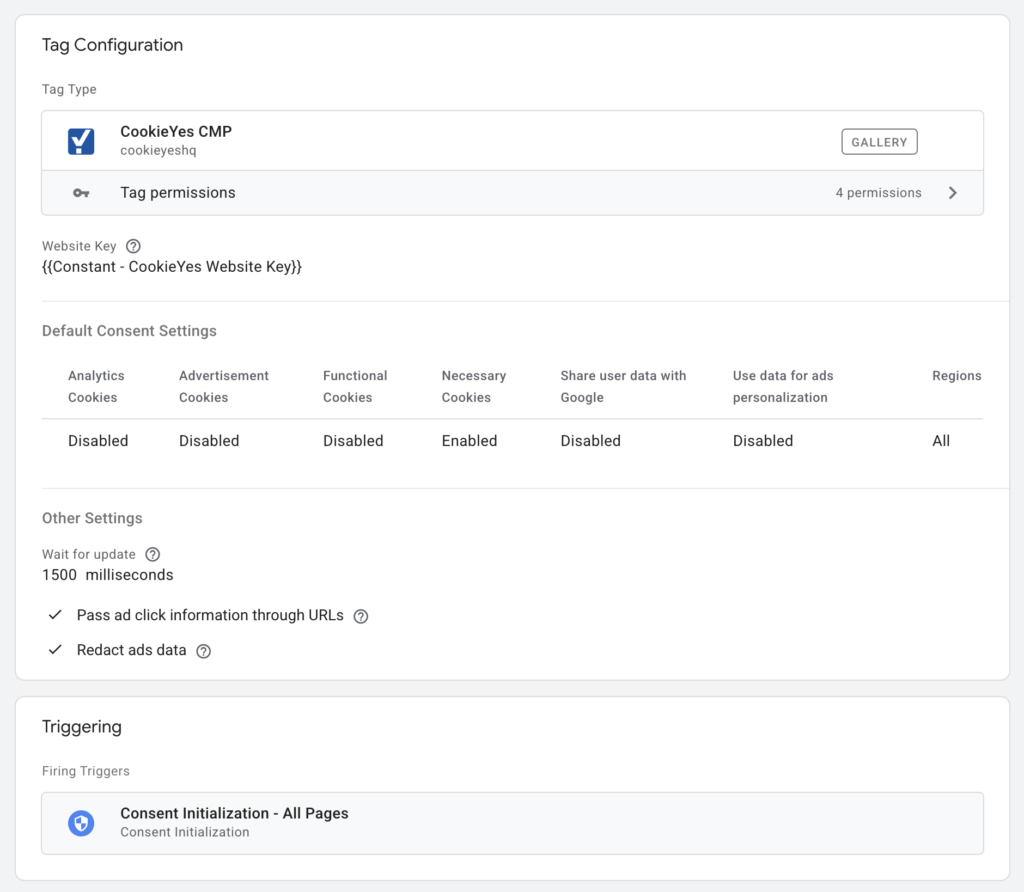
- To configure consent settings, open the CookieYes CMP tag and expand Default Consent Settings.
- Next, click Add Setting.
- If you’re using the “US State Laws” banner
- For Analytics Cookies, select Enabled.
- Additionally, set Advertisement Cookies to Enabled.
- Next, choose Enabled for Functional Cookies and Necessary Cookies.
- Finally, enable both Share user data with Google and Use data for ads personalization.
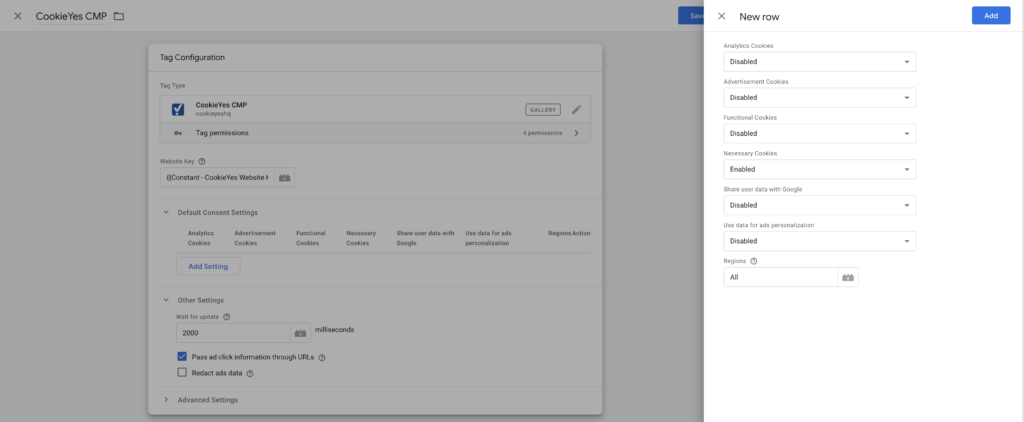
- If you’re using the “GDPR” banner
- For Analytics Cookies, select Disabled.
- Likewise, set Advertisement Cookies and Functional Cookies to Disabled.
- However, keep Necessary Cookies set to Enabled.
- Finally, disable both Share user data with Google and Use data for ads personalization.
How to configure other settings
- Open the Other Settings section inside the CookieYes CMP tag.
- First, set Wait for update to
1500. - Next, enable Pass ad click information through URLs.
- This setting allows click IDs to persist even when the default consent state starts as denied. As a result, attribution data can remain available before consent updates occur.
- Additionally, if a user changes consent from granted to denied during a session, GA4 appends a
gllinker parameter to page URLs. This parameter passes session information across pages without relying on first-party cookies.- However, this feature can break websites that rely on query parameters to populate content dynamically. Therefore, check with your development team before enabling it.
- Next, enable Redact Ads Data if your business operates under stricter privacy requirements, such as GDPR.
- Because this setting limits advertising identifiers, it may support compliance in more restrictive regions. However, if your traffic comes exclusively from the United States, you may leave this option disabled.
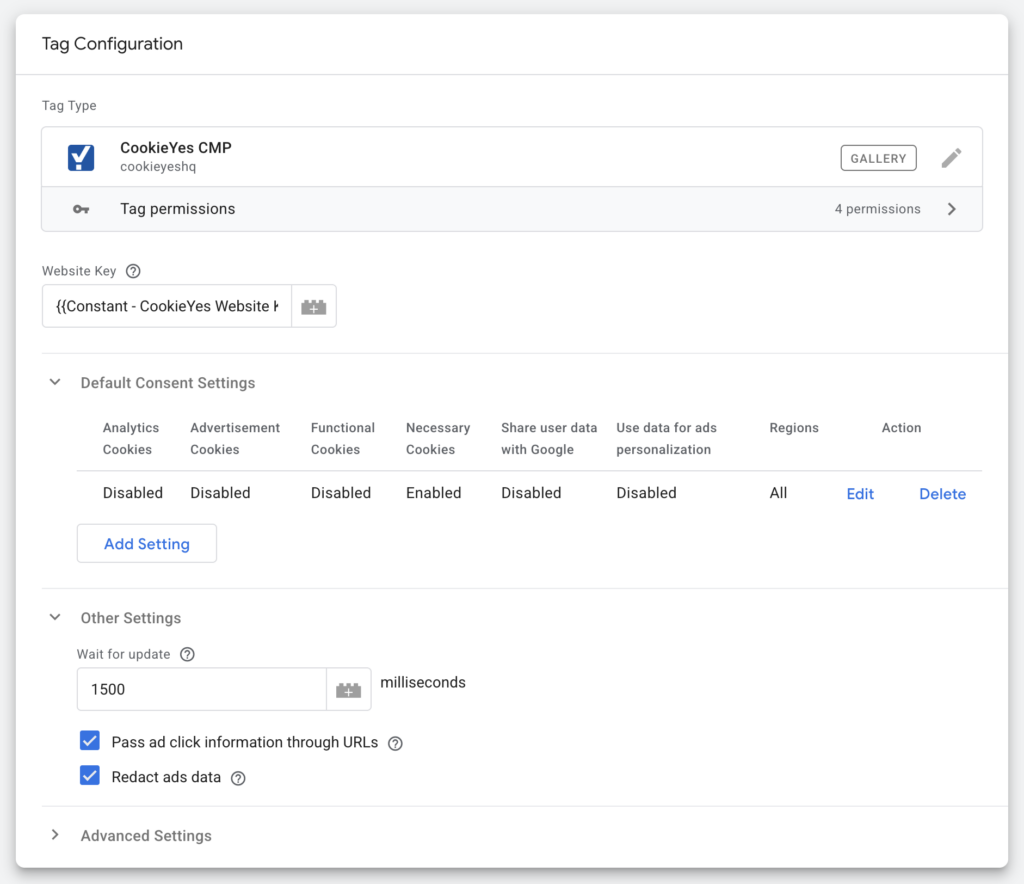
- Save the tag.
How to trigger the CookieYes tag
- Open the CookieYes CMP tag
- Click into the Triggering pane
- Select the ‘Consent Initialization – All Pages‘ trigger
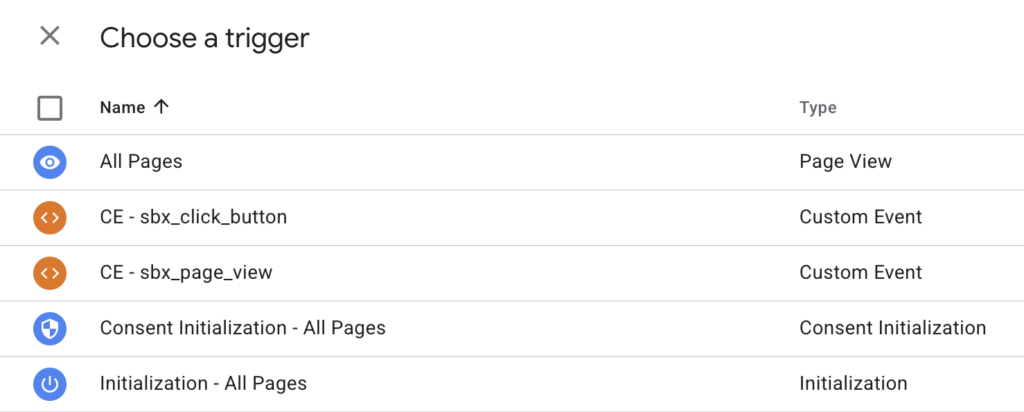
- Save the tag
How to set up CookieYes for Google Consent Mode V2
- Navigate to your CookieYes.com Web App Dashboard
- Click Advanced Settings in the sub-header menu bar
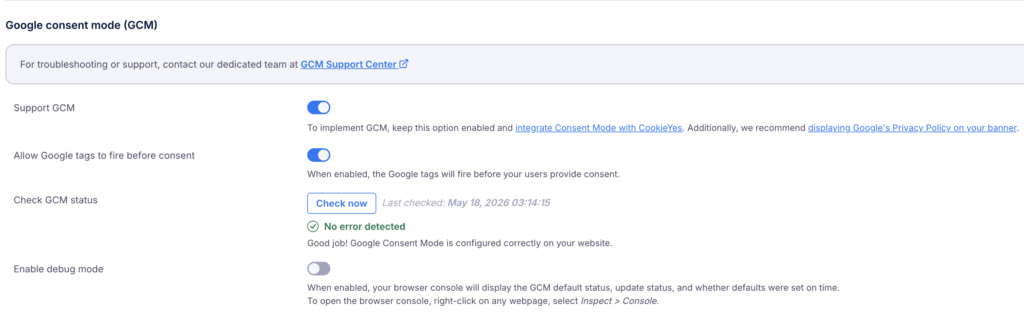
- Scroll down to the Google Consent Mode section
- Lastly, turn on the sliders for Support GCM and Allow Google tags to fire before consent
How to capture UTMs on landing pages with consent denied
- First, open your CookieYes dashboard and navigate to Cookie Banner.
- Then, select General from the left sidebar.
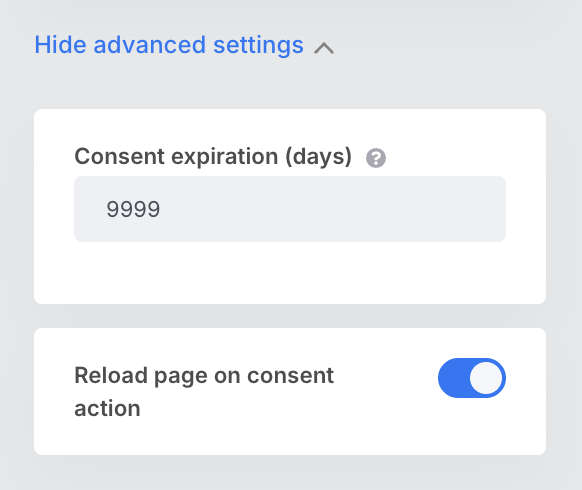
- Next, expand Advanced Settings.
- Before making other changes, set Consent expiration (days) to ‘
9999‘.- This setting controls the expiration of the
cookieyes-consentcookie. Because most US state privacy laws do not define a required retention period for user preferences, many organizations maximize this value.
- This setting controls the expiration of the
- Afterward, enable Reload page on consent action.
- With this setting active, the page reloads when users update consent preferences. As a result, Google Tag Manager can capture landing-page UTMs after consent becomes granted.
- Importantly, this approach avoids setting cookies before consent while still preserving attribution when permission changes.
- However, UTM capture has limitations. If a visitor denies consent on the landing page, navigates elsewhere, and later accepts consent, the original UTMs may be lost.
- Fortunately, this is where Pass ad click information through URLs becomes valuable. When enabled, click IDs and attribution data can persist across page navigation, even if consent updates later in the session.
How to QA the CookieYes CMP tag
Now that you know how to do a CookieYes implementation with Google Tag Manager, let’s wrap it up with some QA. This will ensure CookieYes and Consent Mode are working with Google Tag Manager
How to verify that Google Consent Mode V2 is working
- Navigate to your CookieYes.com Web App Dashboard
- Click Advanced Settings in the sub-header menu bar
- Scroll down to the Google Consent Mode section
- Click the Check now button
- If a green message appears under the button saying ‘No error detected’, it’s working properly!